Unblinding Subjects
1. How to perform an emergency unblinding
The following procedures must be followed:
1. Go to Codes page (button in Welcome page or in the dropdown menu at the left of the page)
2. Click on the red button Unblind in the corresponding subject's entry
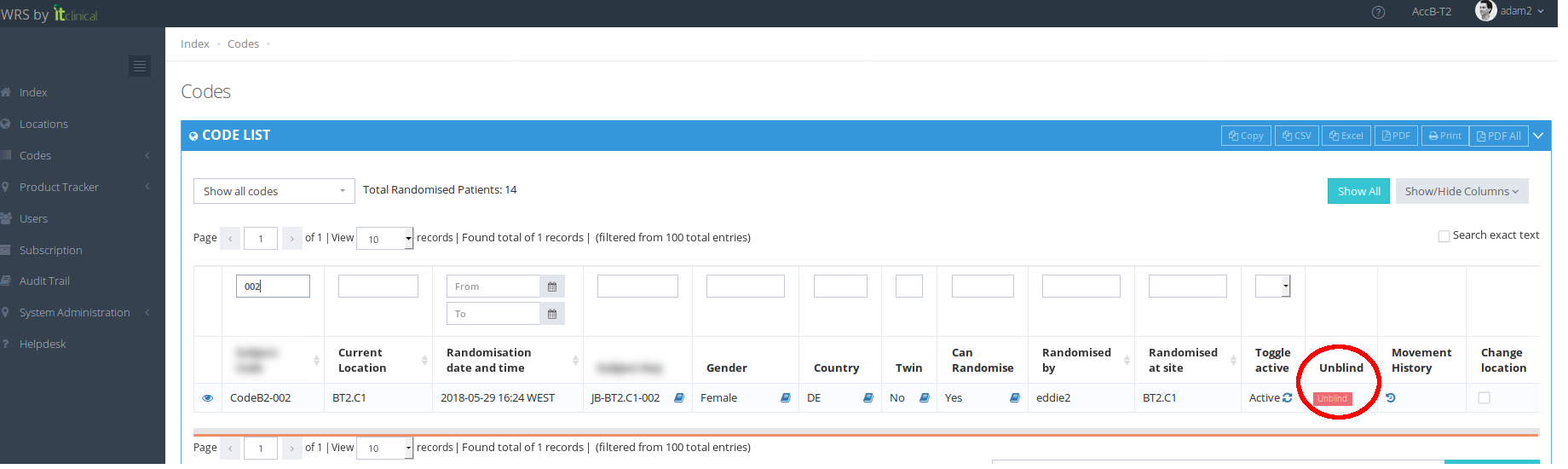
3. Confirm Subject Code (randomisation code) and the Reason for unblinding
Note: in case the information you entered is incorrect or incomplete, a warning will be shown.
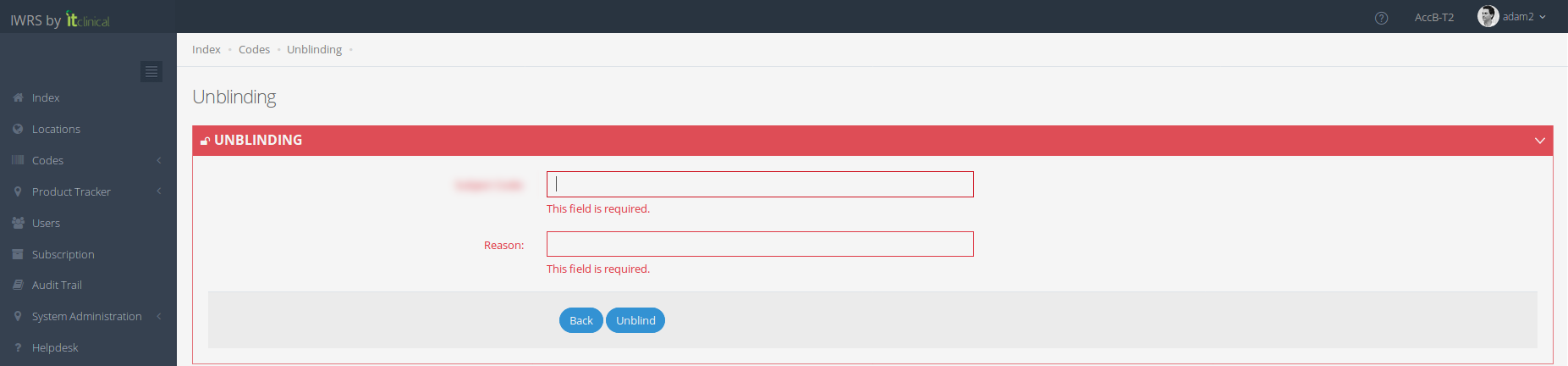
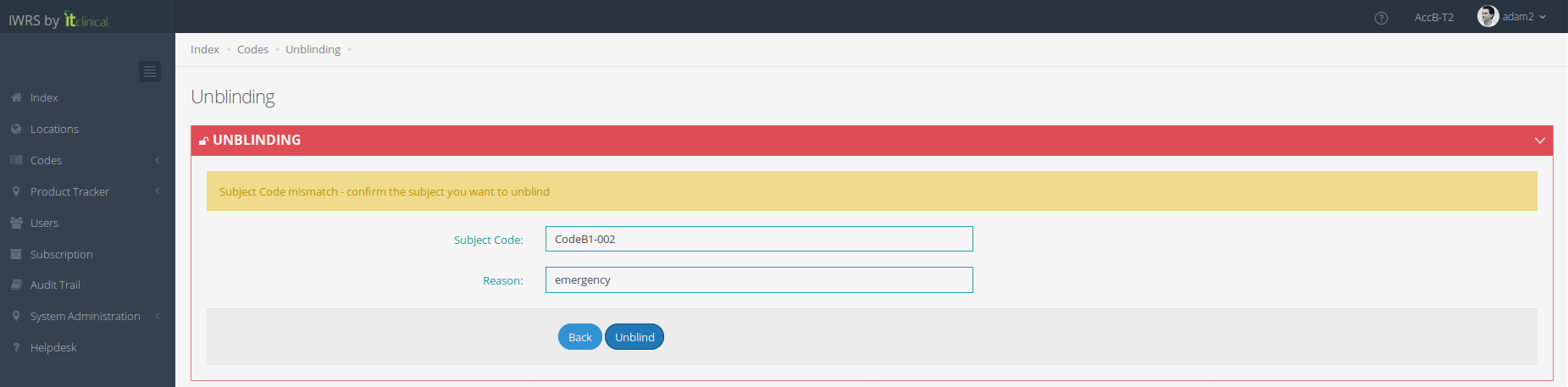
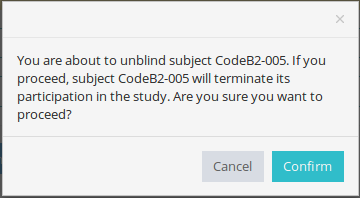
4. If the information is correct click Unblind and then Confirm if you want to proceed
5. When information is correctly provided a confirmation is required for unblinding to proceed
6. Unblinding information will be shown in case you confirmed the unblinding.

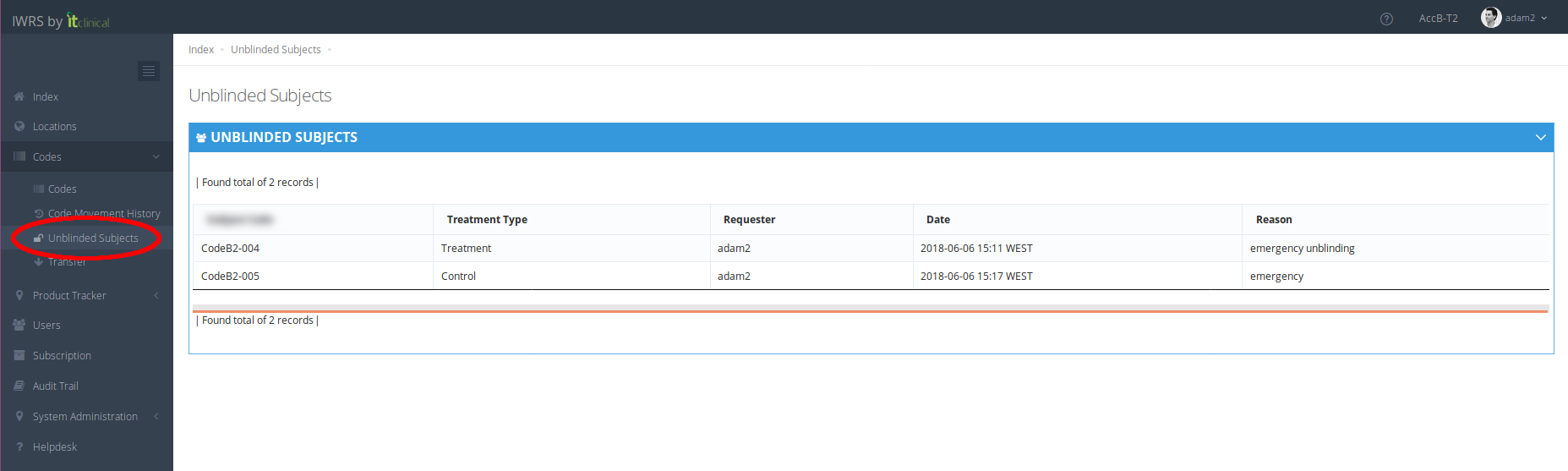
7. The list of Unblinded subjects is also available in Unblinded Subjects page (if you have the permission to see unblinding information).
2. Predefined unblinding reasons
Trials can also be configured to have a set of predefined reasons for unblinding and free text field for additional information. Select a reason from predefined list is mandatory.

Additional information can also be added.
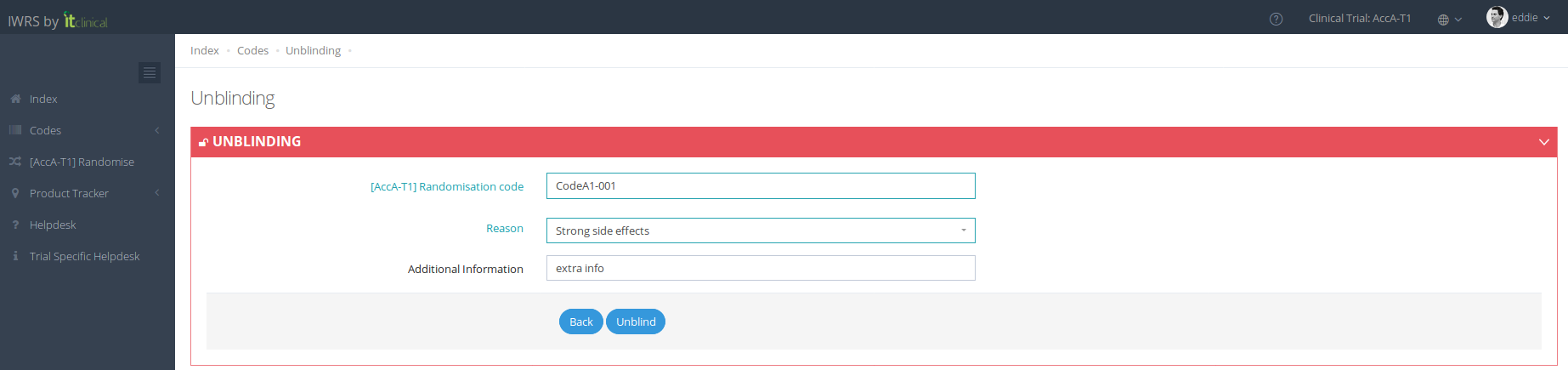
The list of unblinded subjects will include both the reason and the additional information (if any was added when unblinding subject).

Related Articles
Unblinding Summary
Unblinding This action unblinds a randomisation code, permanently terminating the participation of the subject in the study. This action should only be performed in case of an emergency. In the Unblinded Subjects list, a user will be able to see all ...Subscription List Management
1. Subscription Lists To see the subscription lists go to Subscription page. Depending on your account permissions/configuration, the following subscription lists may be available in the system: Subscription List Name Description Unblinded List An ...Trial Details
1. How to edit the trial details Only users with certain permissions can see and/or edit the trial details. 1. Go to Trial Settings page underSystem Administrationon the left menu 2. Select Trial Details tab 3. The trial details will be shown as ...Advanced Topic: Data Transfers
1. How to transfer blinded/unblinded randomised data Transfer list can be accessed inTransfer page [1] (available under Codes menu or in Welcome Page). To transfer blinded or unblinded randomised subject data click on the "Transfer" button [2] ...Trial Settings - Timezone
1. How to edit trial timezone Only users with certain permissions can see and/or edit the trial timezone. 1. Go to Trial Settings page under System Administration on the left menu 2. Select Regional Settings tab 3. The trial's timezone will be ...