Advanced Topic: Data Transfers
1. How to transfer blinded/unblinded randomised data
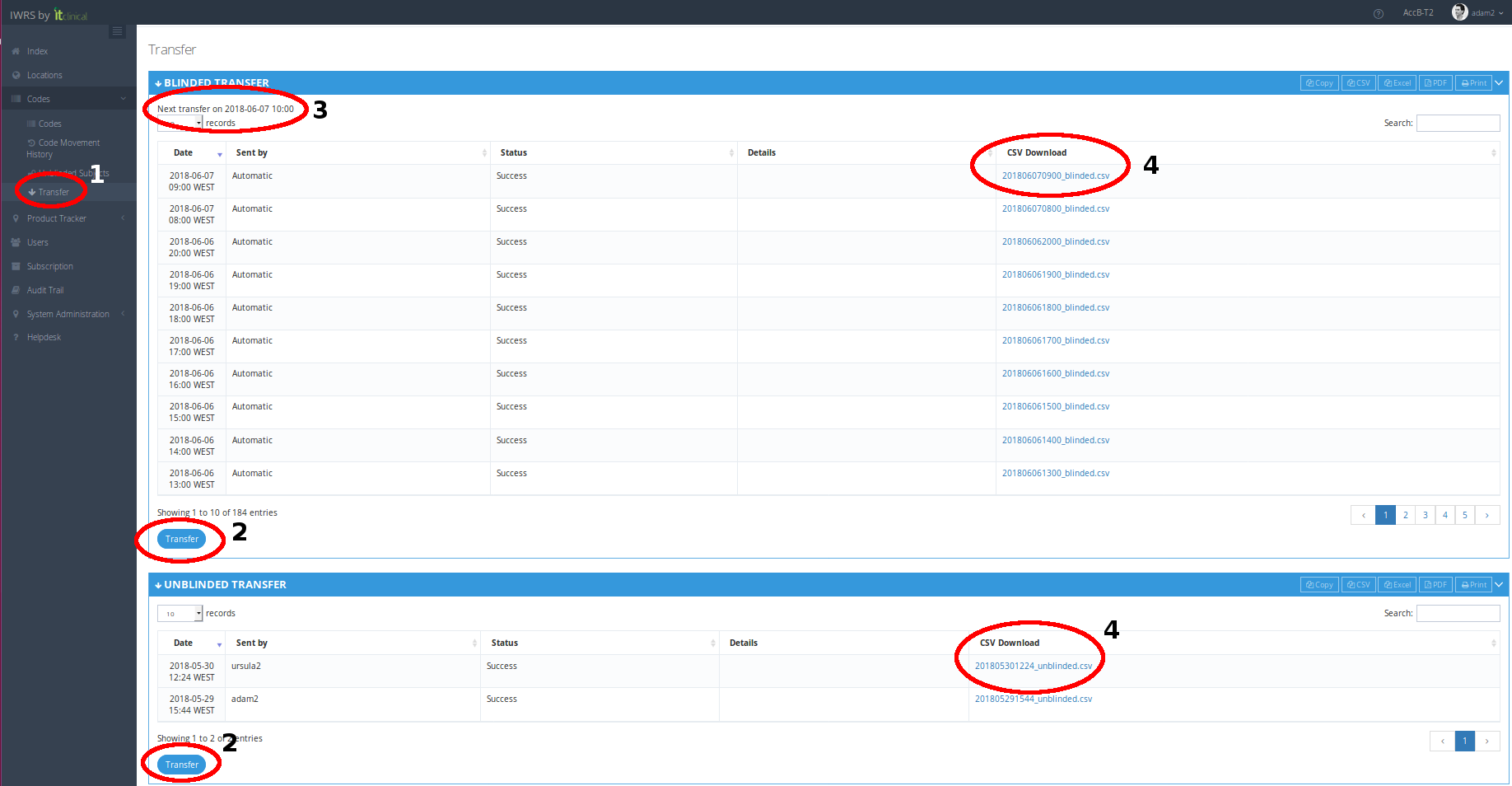
- Transfer list can be accessed inTransfer page [1] (available under Codes menu or in Welcome Page).
- To transfer blinded or unblinded randomised subject data click on the "Transfer" button [2] available at the bottom of each list.
- A CSV file will be downloaded with blinded or unblinded randomised data.
2. Transfer History
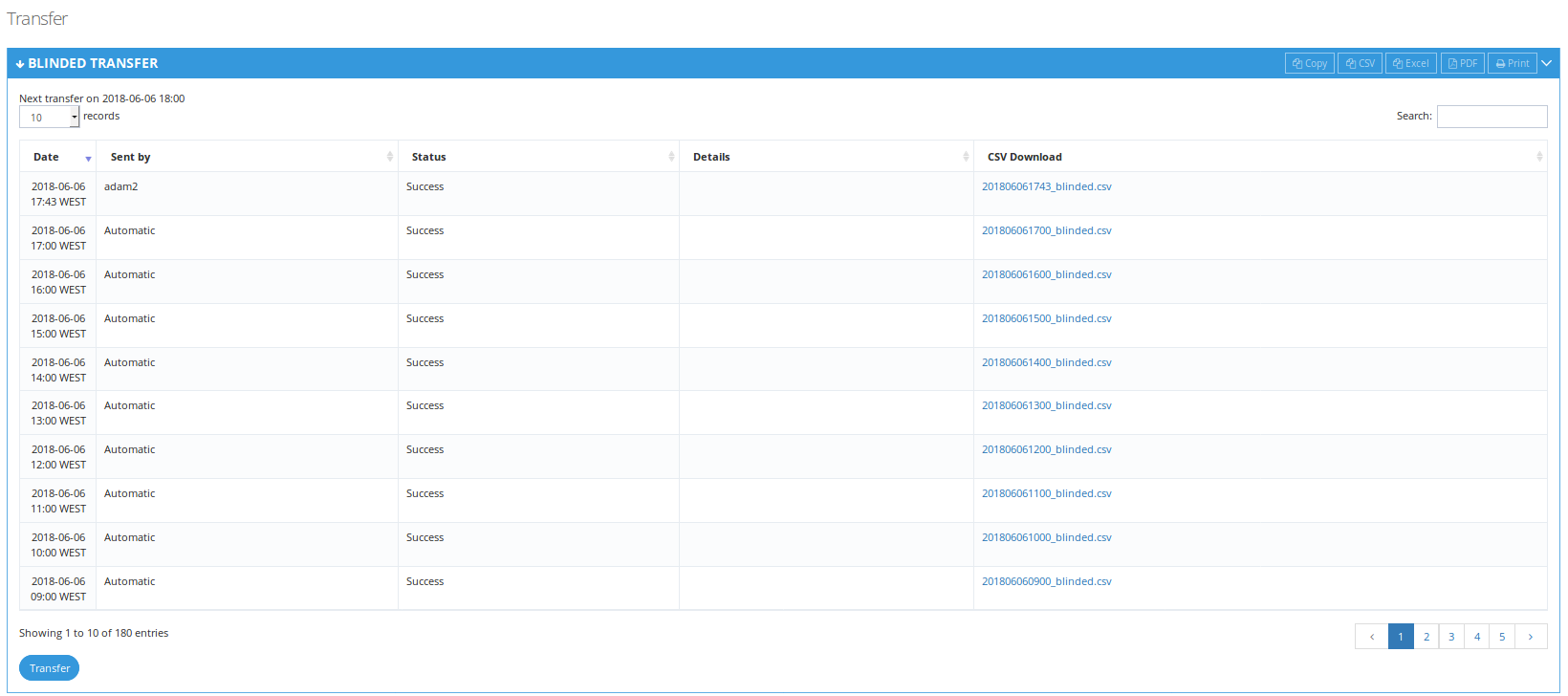
Transfer history will be always available in Transfer page
If you have the required permission, you will also be able to download previously transferred files [4]
3. Blinded randomised data
Blinded transfer will provide a file with all randomisation details of randomised subjects, except hidden properties (e.g. treatment).
- Automatic transfer
Blinded transfer is configured to automatically transfer the information (e.g. weekly, monthly) - the scheduled date for next automatic transfer is available in page (see [3] above)
- Manual transfer
At any times, a manual transfer may be performed.
4. Unblinded randomised data
Unblinded transfer will provide a file with all randomisation details of randomised subjects, including all hidden properties (e.g. treatment).
- Manual transfer
At any times, a manual transfer may be performed (given the permissions allow).
- Automatic transfer
Automatic transfers are not available for unblinded data.

Related Articles
Advanced Topic: Revert Dispense
1. Product Dispense Reverting In trials with Revert Dispense permissions, it is possible to revert the dispense of one or more products. This action will remove the product association to the subject. Product will stay inactivate. 1. Select one or ...Account or Trial selection
Note: This feature only applies to users associated with more then one account and/or trial. 1. Context Context is what defines the data the user is interacting with when logged in. A context can be a trial or an account. A user can only select ...Login / Logout
In this section you will learn to: Log in IWRS Log out IWRS 1. (First) Login To log in to the IWRS system: A random password and access instructions will be sent to your email The login page will be available in the following link: ...Subscription List Management
1. Subscription Lists To see the subscription lists go to Subscription page. Depending on your account permissions/configuration, the following subscription lists may be available in the system: Subscription List Name Description Unblinded List An ...Supply Schemes
1. What is stock resupply? Stock resupply is an optional feature which allows to send a warning notification when the stock is low at a location. In addition, a stock resupply shipment can be automatically and/or manually initiated (depending on ...