Advanced Topic: Revert Dispense
1. Product Dispense Reverting
In trials with Revert Dispense permissions, it is possible to revert the dispense of one or more products. This action will remove the product association to the subject. Product will stay inactivate.
1. Select one or multiple products for dispense reverting.
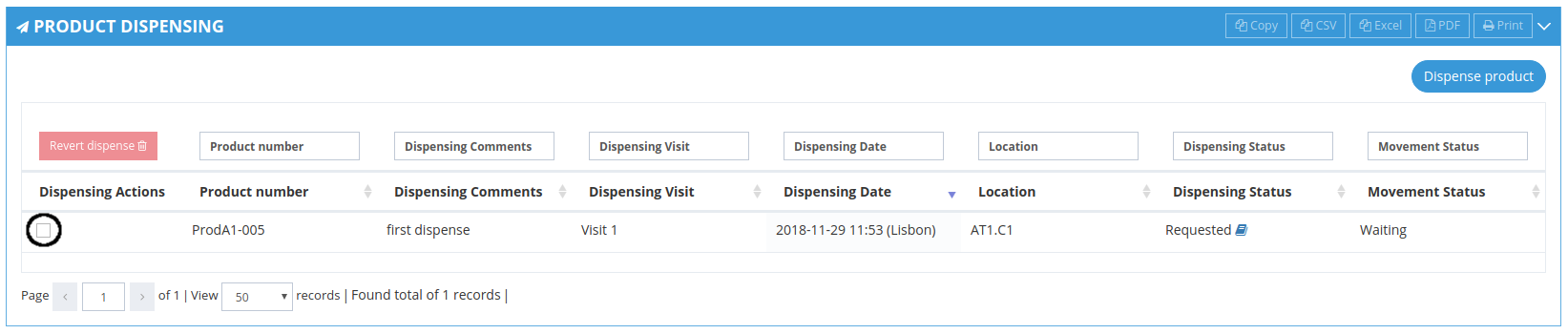
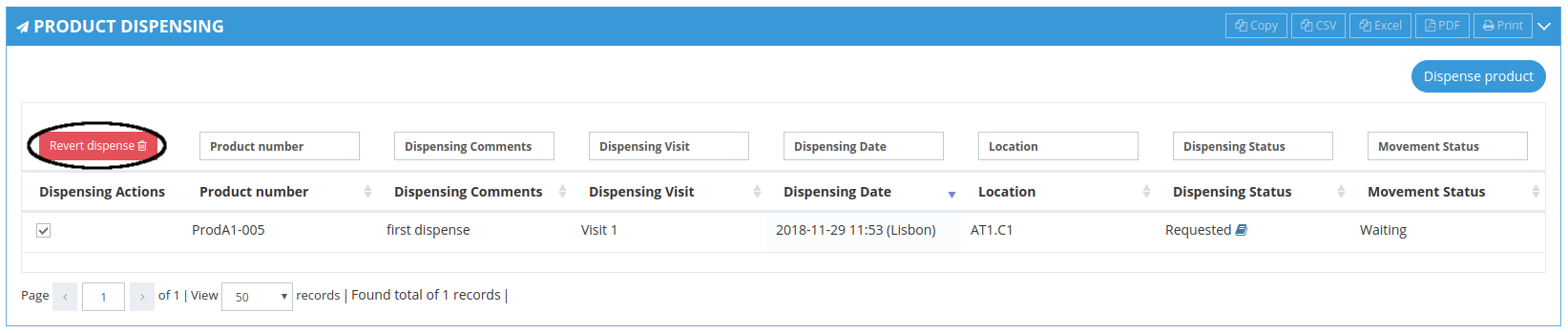
2. Perform reversion by clicking on "Revert Dispense".
3. Confirm by clicking "Yes".
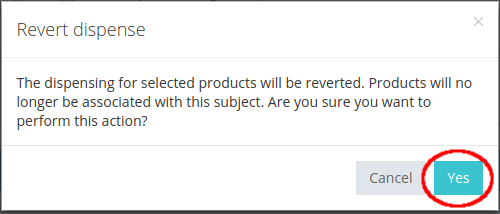
Note: the product will no longer be associated to the subject and will remain inactive. Should you want to make it available to be used again, it will need to be manually activated.

2. Product reverted dispense history
The history of reverted dispenses is available for each product (if dispense was reverted)

3. How to check which products were reverted
The products to which the dispensing was reverted can be confirmed via general audit trail filtering by:
Attribute = "product"
Meaning = "Reverted product dispense"
The information shown in New Value column in the format AAA (BBB) will indicate the corresponding product number: AAA.
In the example below the Product Number is ProdA1-009.

Related Articles
Advanced Topic: Data Transfers
1. How to transfer blinded/unblinded randomised data Transfer list can be accessed inTransfer page [1] (available under Codes menu or in Welcome Page). To transfer blinded or unblinded randomised subject data click on the "Transfer" button [2] ...Dispensing Summary
1. Product Dispensing Product Dispensing performs the automatic and blinded dispense of a product to a subject. The dispense will be performed for an active randomisation code, according to the visit and treatment assigned to the subject. The ...Trial Settings - Visit Configuration
Note: Only users with certain permissions can see and/or edit the visit related configurations. 1. Subject visits schedule configuration Visit scheduling configuration allows the user to configure how many days after randomisation the visits should ...Login / Logout
In this section you will learn to: Log in IWRS Log out IWRS 1. (First) Login To log in to the IWRS system: A random password and access instructions will be sent to your email The login page will be available in the following link: ...Subscription List Management
1. Subscription Lists To see the subscription lists go to Subscription page. Depending on your account permissions/configuration, the following subscription lists may be available in the system: Subscription List Name Description Unblinded List An ...