Login / Logout
In this section you will learn to:
1. (First) Login
To log in to the IWRS system:
- A random password and access instructions will be sent to your email
- The login page will be available in the following link: https://app.iwrs.itclinical.com
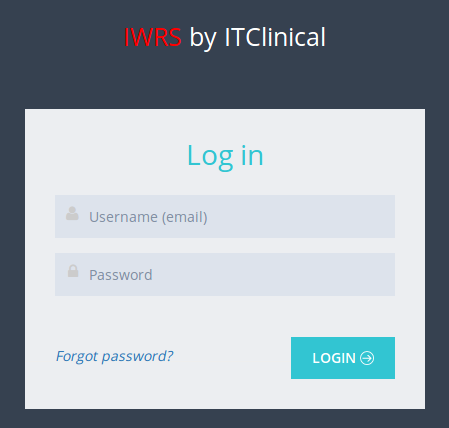
- Log in with your username or your email and the random password you received
- On your first login you’ll be asked to change your password
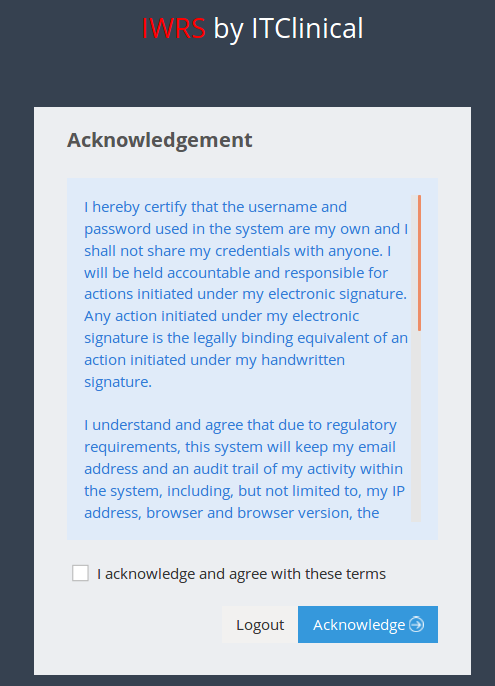
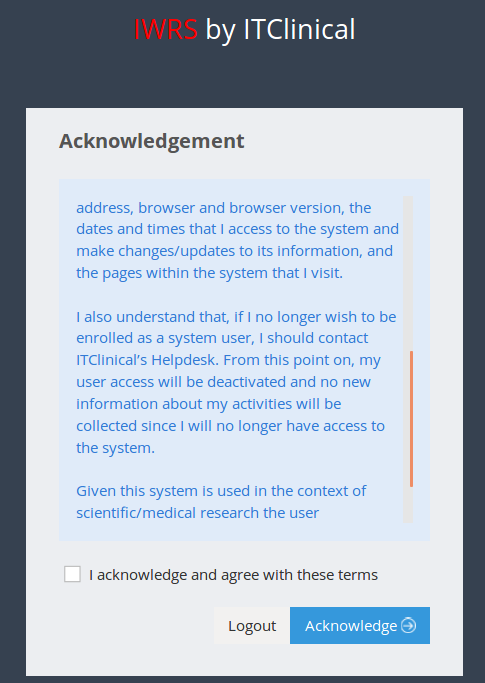
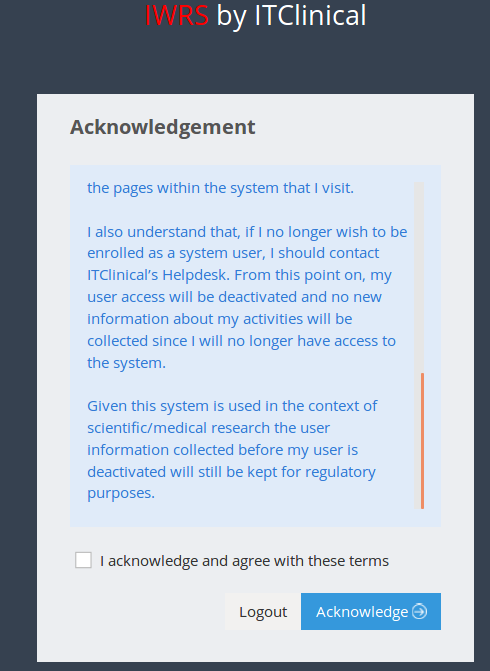
- On your first login you’ll be asked to acknowledge your electronic signature
- In order to log in to the system it is required that you confirm and click Acknowledge.
Users associated with more then one trial/account will be redirected to page where they will be asked to select a trial or account.

For more information on this topic, check the Account or Trial selection section.
2. Logout
Hover your mouse over your username at the top right corner of the page and click Logout.

Please note that in order to prevent misuse of your credentials, you will be automatically logged out after 30 minutes of inactivity. It is therefore important that you save your work frequently.
Related Articles
Password Expiry
1. Password Expiry For security reasons your password will only be valid for 180 days. The Change Password message shown on your first login will also be shown again if you're accessing the system after password has expired.Password Recovery
1. Forgotten password (Password Recovery) To recover your password: Click Forgot password? in login page. Provide your username or email and click Send. You will receive an email with a recover password link. Provide a new password and click Save.Language Settings
Note - Currently the available languages are: English and Chinese. For this section we will do a small walkthrough to explain where and how the user can change its language settings. We will start with the login page in English language and change it ...Trial Settings - Timezone
1. How to edit trial timezone Only users with certain permissions can see and/or edit the trial timezone. 1. Go to Trial Settings page under System Administration on the left menu 2. Select Regional Settings tab 3. The trial's timezone will be ...