Product Returns
1. Return a Product
For example, if a product is damaged/expired, you need to return it and should follow the next steps:
1. Go to the Product List page.
2. Choose the inactive product you want to return. Click the checkbox for the desired product.
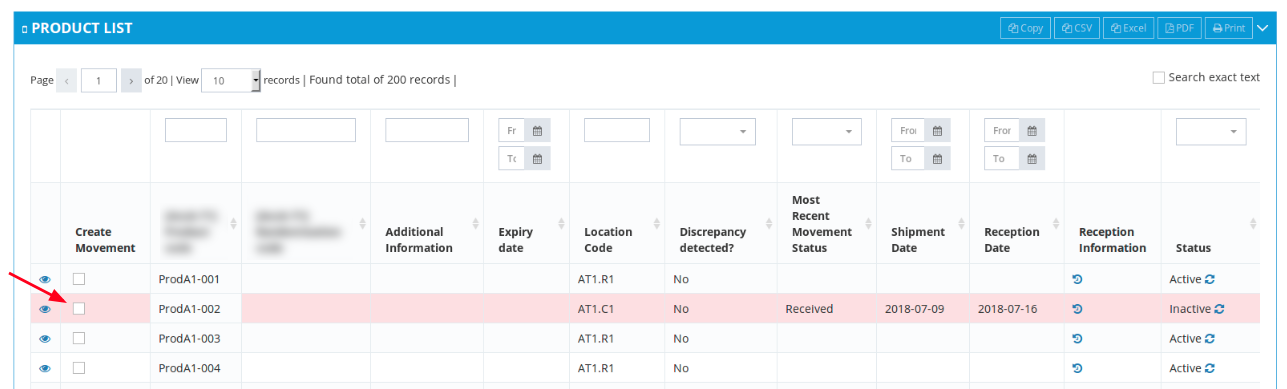
3. Initiate the shipment for the return of the product and fill out at least the Send to Location (optional: Tracking Number) fields for the shipment (available under the Product list table).
Note: This table is only available after you select a product for the shipment.
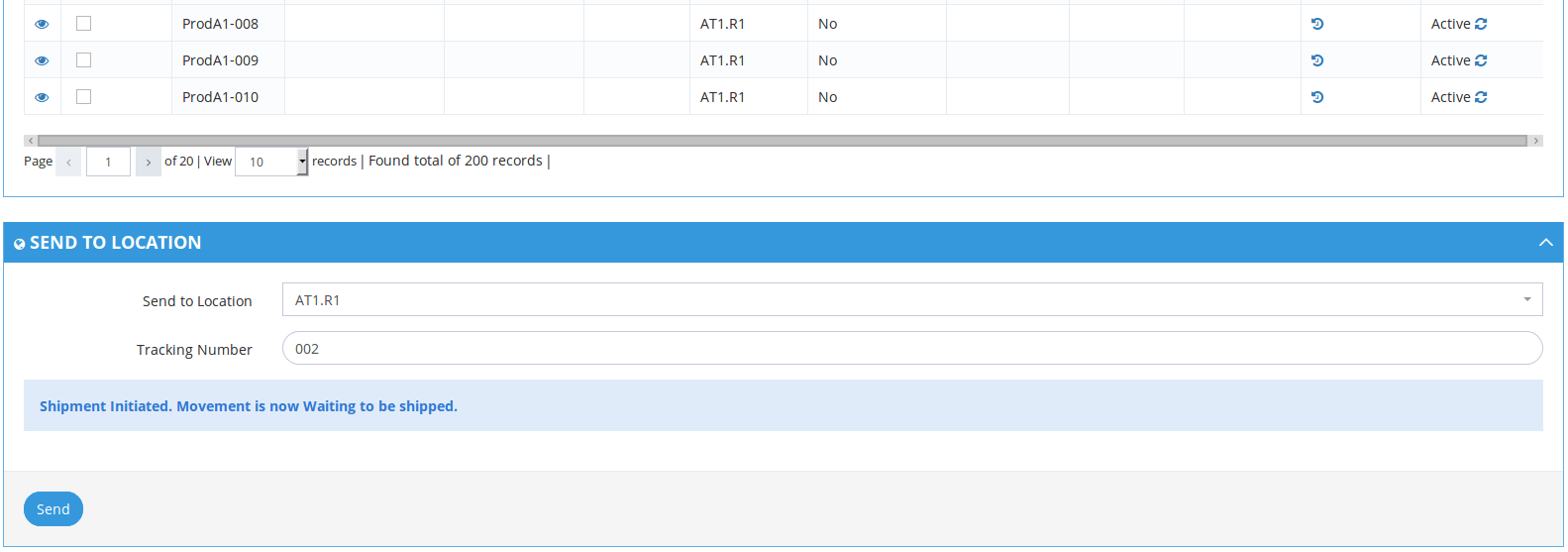
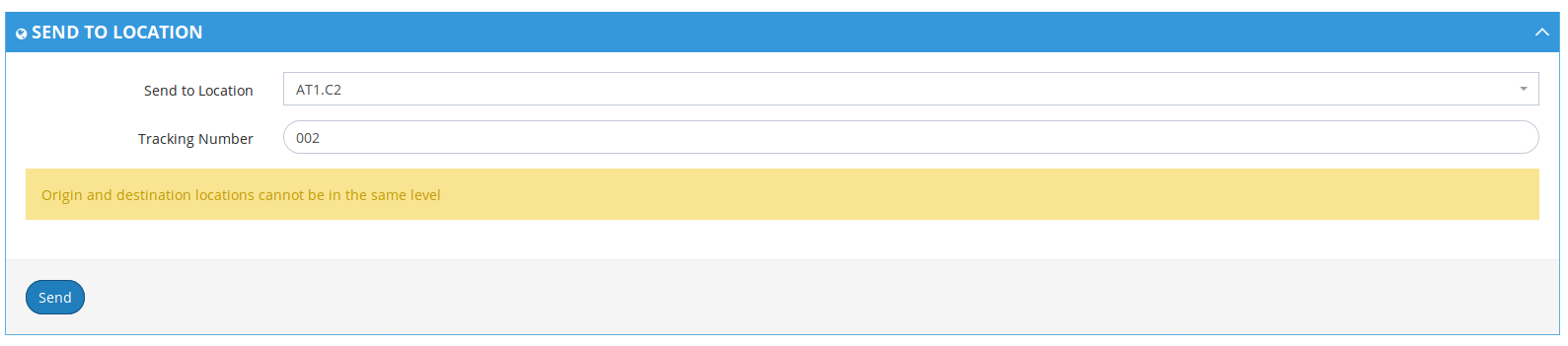
You can only return products to locations of higher levels (see article Product Shipment Rules). For example, if product is at a site, it can only be returned to a Regional or Global Distributor.
If the Send To Location is of the same level, a warning will appear and the movement won't be created.
4. The Shipment Status for the product is now Waiting and can be managed as explained in the article: Workflow Summary.
Related Articles
Edit Product Details
1. Edit Product Details 1. From the Product List access a selected product's details page. 2. Edit product details and "Submit". Note: When editing a product's details, the Expiry Date field is mandatory in order to submit changes. An error message ...Import Product Information
Note: Depending on your account permissions/configuration, you may be able to import products' information to IWRS. 1. How to import products' information 1. Go to Import Products page (available under Product Tracker menu). 2. Select the CSV file ...Product Shipment Rules
1. Shipments cannot be performed between locations at same level (e.g. between sites or regional distributors) Examples: Same level shipments are not allowed Origin Destination Result Global Regional Success Regional Site Success Global Site Success ...Step 3 - Confirm Product Reception
1. How to perform product reception Assuming that a product shipment was initiated and then confirmed: 1. Go to Product Movement History page (available under Product Tracker menu or in Welcome Page). 2. Click shipment details button corresponding to ...Step 1 - Initiate Product Shipments
1. How to initiate a product shipment 1. Go to Product List page (available under Product Tracker menu or in Welcome Page). 2. Select the products for shipment by ticking their checkboxes in the Create Movement column. 3. When you select a product, a ...