Automatically generated Tracking Number
1. Rules for the automatically generated Tracking Number
1.1 Tracking number format
The automatically generated Tracking number uses the following properties to create the tracking number (TC-LC-SQN):
- TC: Trial code
- LC: Destination location code
- SQN: Sequential number
Example 1:
Trial Code: TA
Shipment to: L01
Automatically generated tracking number: TA-L01-001
Note: for trials without Trial Code, the generated tracking number will only use location code and sequential number in the following format: -LC-SQN
Example 2:
Trial Code: -
Shipment to: L01
Automatically generated tracking number: -L01-001
1.2 Sequential number starts at 001 for each destination location
Example 3:
Trial Code: TA
Existing shipments in L01: TA-L01-001
Existing shipments in L02: -
Shipment to: L02
Automatically generated tracking number will be: TA-L02-001
Shipment to: L01
Automatically generated tracking number will be: TA-L01-002
1.3 The next sequential number is the highest existing number +1
Example 4:
Trial Code: TA
Existing shipments in L01:
- TA-L01-001
- TA-L01-003
Shipment to: L01
Automatically generated tracking number will be: TA-L01-004
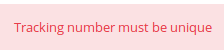
1.4 Tracking Number must be unique in the trial (automatically generated or not)
A warning will be shown if users try to insert an existing tracking number
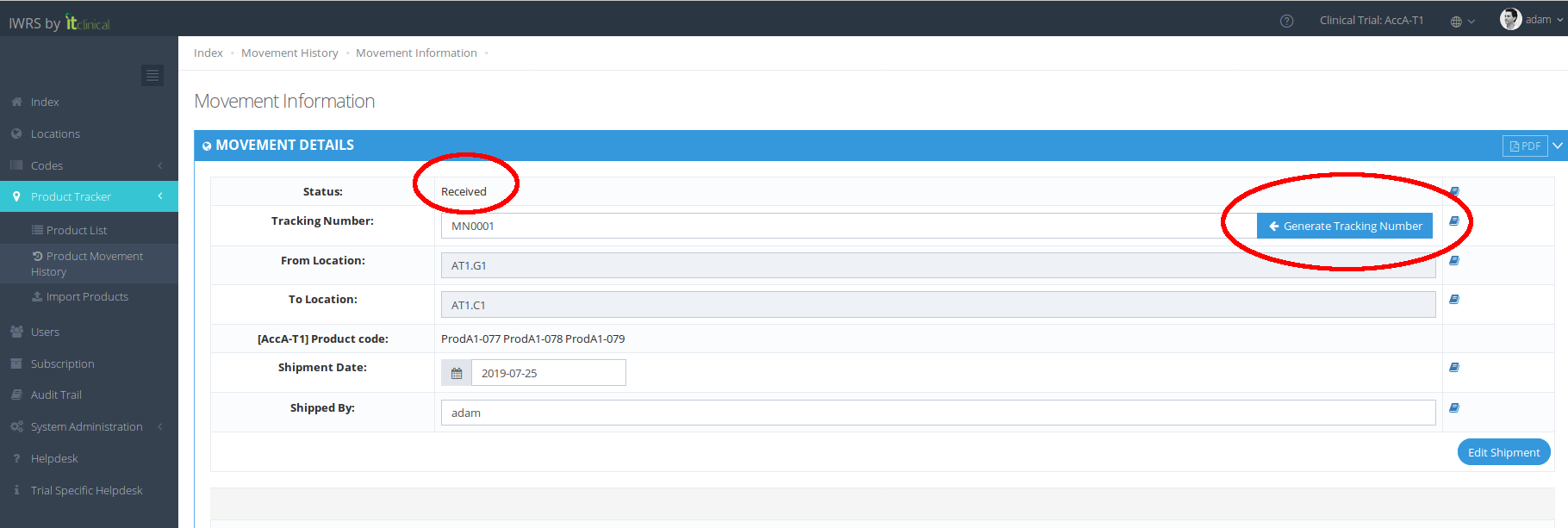
2. When is it possible to generate the tracking number?
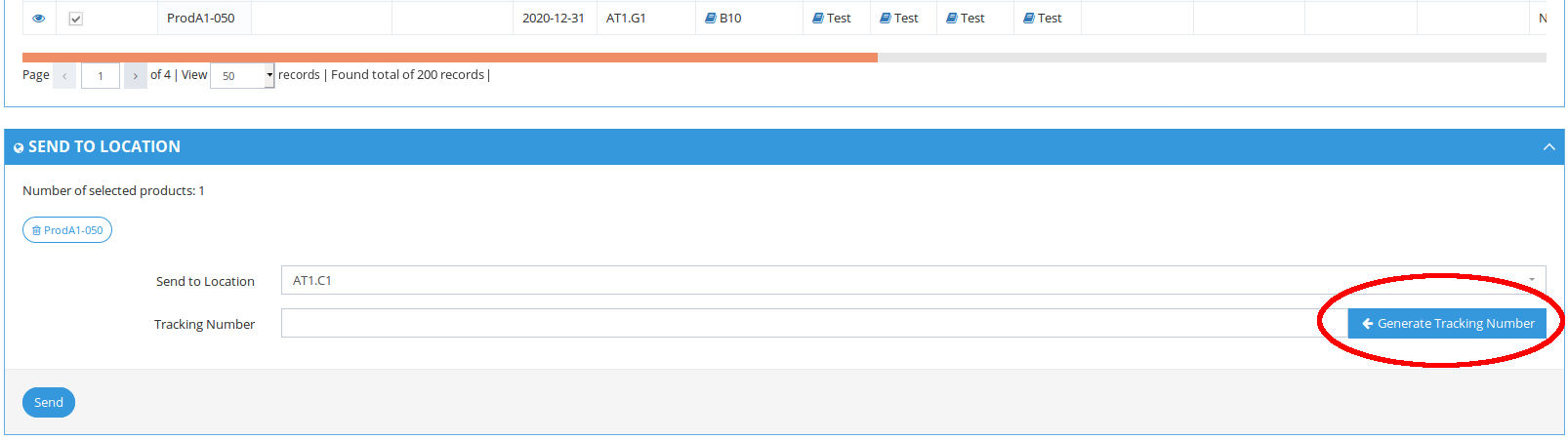
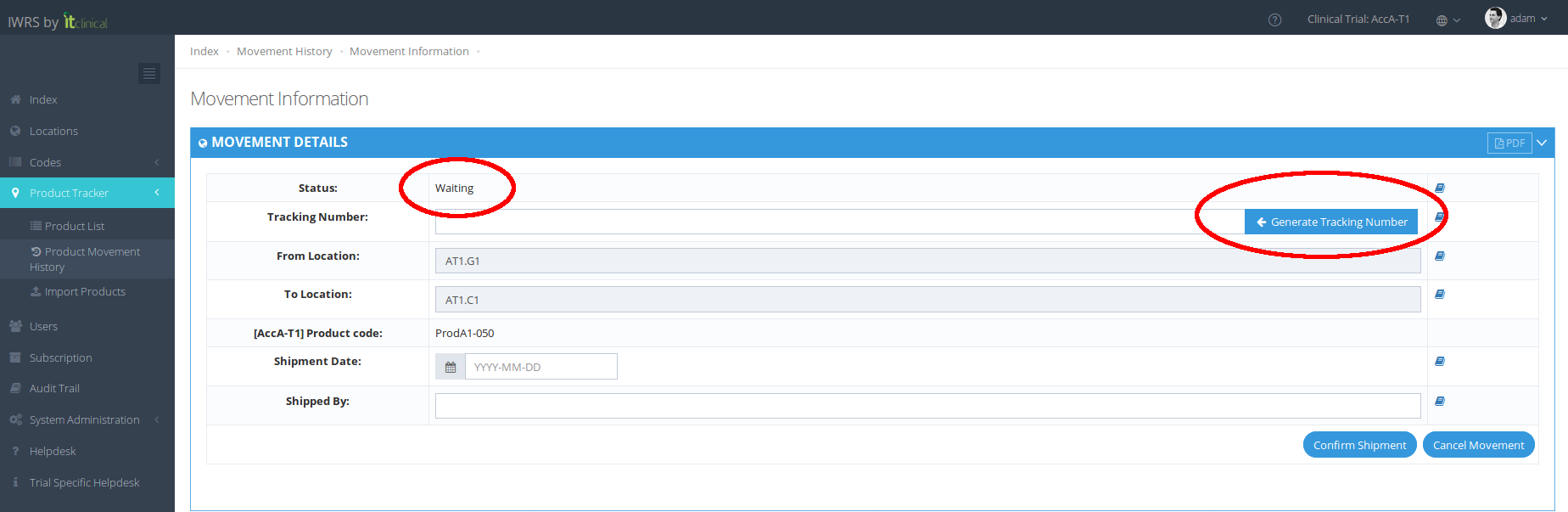
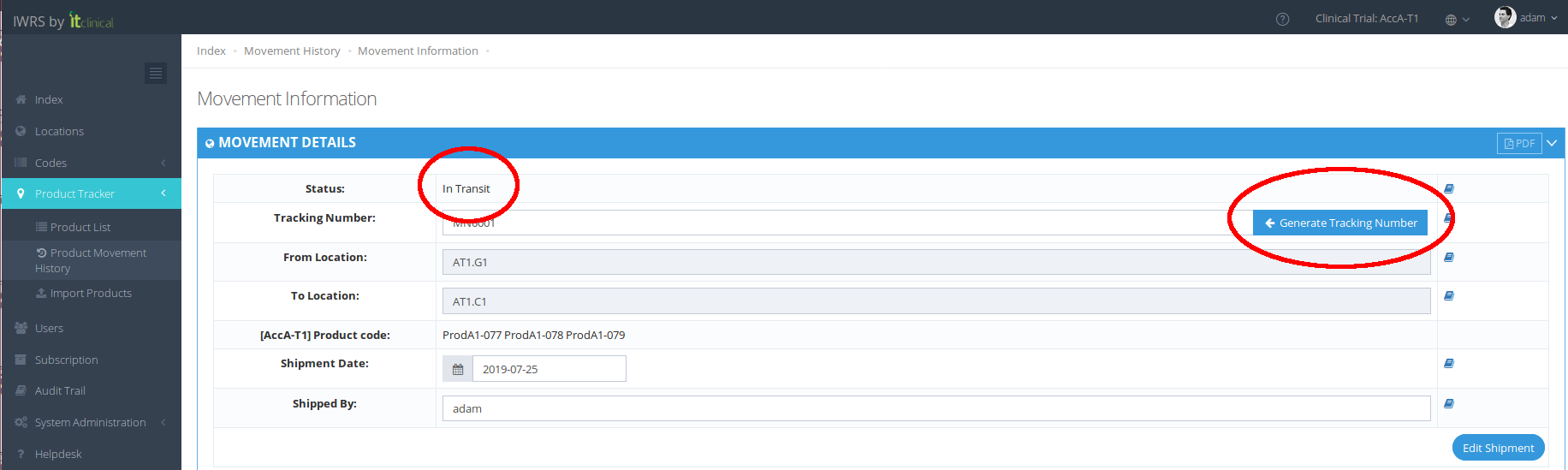
The tracking number can be inserted or edited in the following shipment stages:
- When manually creating a movement:
- When confirming movements with "Waiting" status:
- When editing movements with "In Transit" status:
- When editing movements with "Received" status:
Related Articles
Step 1 - Initiate Product Shipments
1. How to initiate a product shipment 1. Go to Product List page (available under Product Tracker menu or in Welcome Page). 2. Select the products for shipment by ticking their checkboxes in the Create Movement column. 3. When you select a product, a ...Step 2 - Cancel, Confirm and Edit Shipment
1. Cancel Shipment When in "Waiting" status, shipments can be canceled. If you cancel the shipment, products will be left in the origin location and the Shipment Status will be "Cancelled". 2. Confirm Shipment After initiating a shipment the shipment ...Supply Schemes
1. What is stock resupply? Stock resupply is an optional feature which allows to send a warning notification when the stock is low at a location. In addition, a stock resupply shipment can be automatically and/or manually initiated (depending on ...Automatic Shipment Initiation
1. Stock Resupply - Automatic Shipment Initiation Stock resupply is useful if you want shipments to be automatically initiated in order to avoid running out of products. The location needs to have a depot and a supply scheme with a resupply trigger ...Product Returns
1. Return a Product A product may only be returned if it's inactive. For example, if a product is damaged/expired, you need to return it and should follow the next steps: 1. Go to the Product List page. 2. Choose the inactive product you want to ...