How to configure a location for Automatic Shipment Initiation
1. Steps for the configuration of Automatic Shipment Initiation
It is assumed that the trial is configured for automatic shipments.
To correctly use this feature, the following steps must be followed:
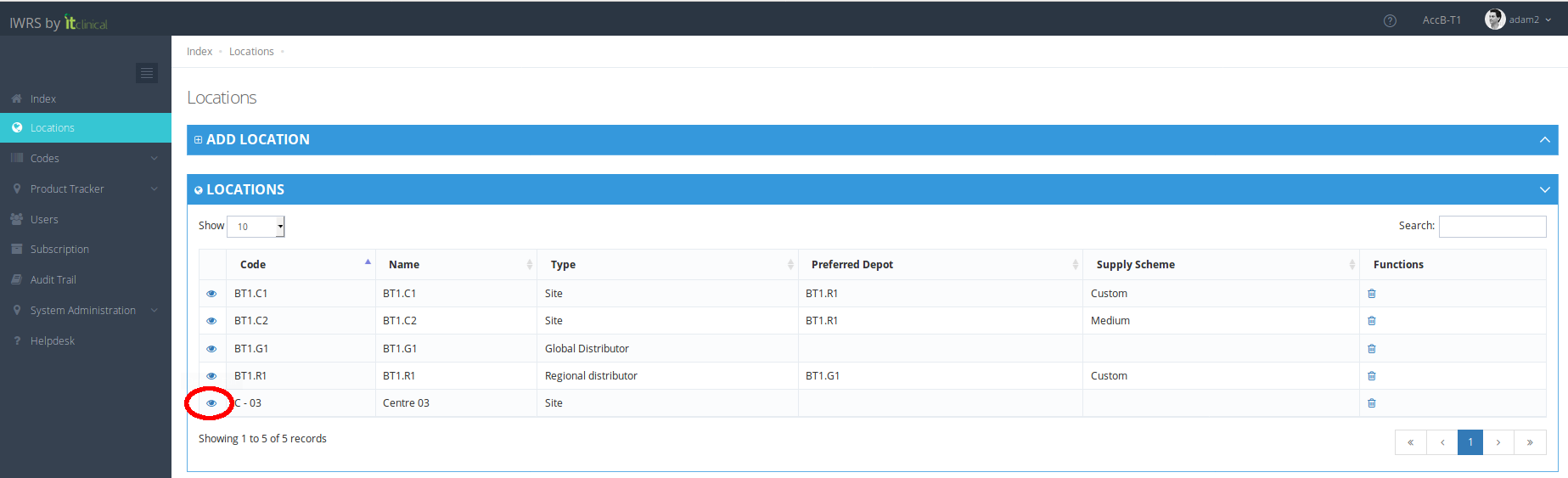
1. Select a location from the Locations list by clicking on the details button (eye icon).
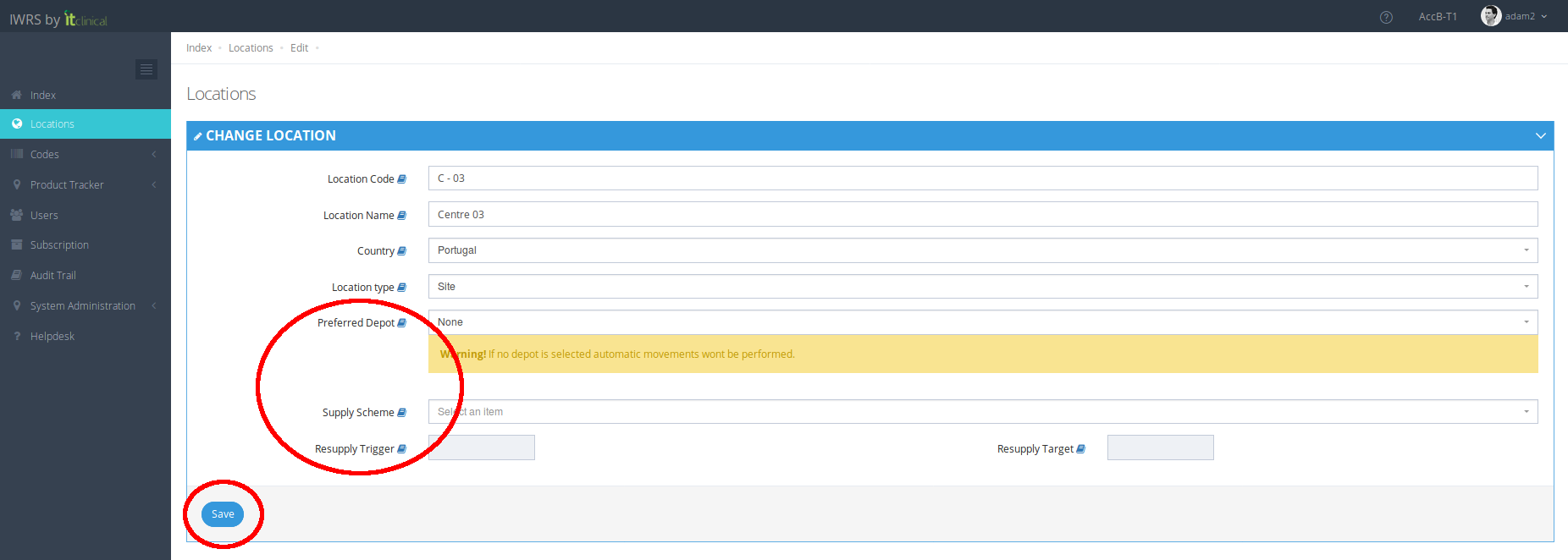
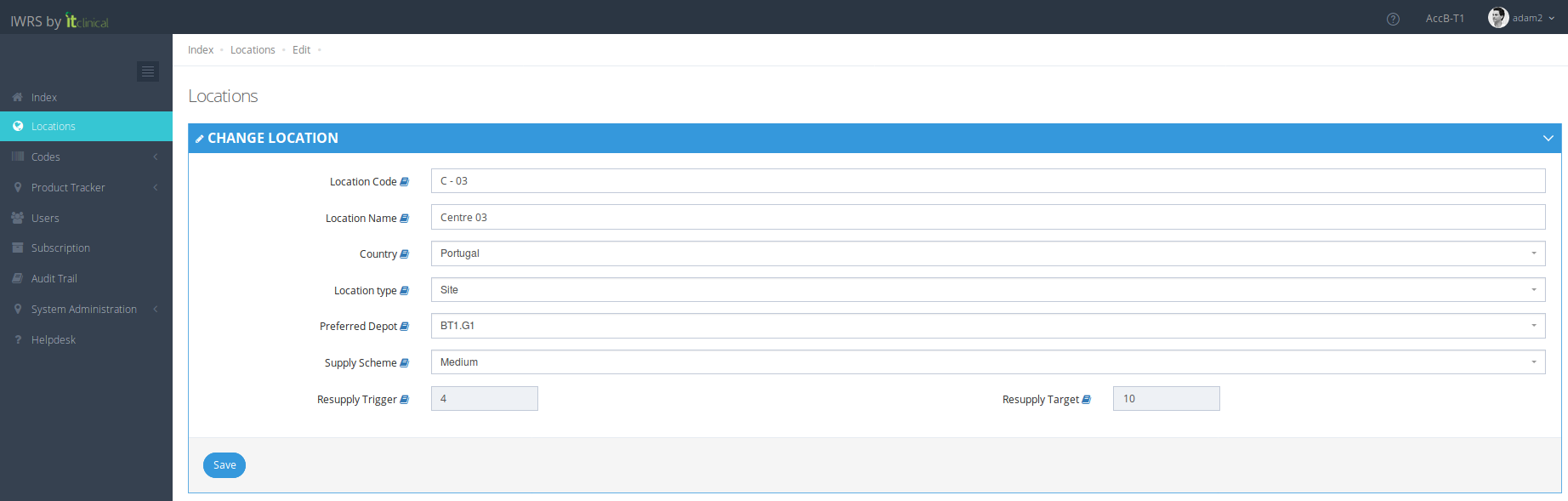
2. Select the Preferred Depot (location where the products will be shipped from) - If you do not choose a Preferred Depot the shipment cannot be initiated .
3. Select the Supply Scheme (e.g. Low, Medium, High, Custom) - See section below to learn more on how to choose a supply scheme.
4. Click "Save" button to save your information.
2. Automatic Shipment Initiation
For more detailed information on Automatic Shipment Initiation, please refer to the following articles:
- Stock Resupply - Automatic Shipment Initiation
- Stock Resupply - Manually triggered automatic shipments
3. How to choose a supply scheme?
For more detailed information on supply schemes, please refer to the following article: Stock Resupply - Supply Schemes .
Related Articles
Automatic Shipment Initiation
1. Stock Resupply - Automatic Shipment Initiation Stock resupply is useful if you want shipments to be automatically initiated in order to avoid running out of products. The location needs to have a depot and a supply scheme with a resupply trigger ...Manually triggered automatic shipments
1. What are manually triggered automatic shipments? Trials configured with manually triggered automatic shipments allow the users to manually trigger a shipment initiation. This shipment will take into account the target defined for that location and ...Predictive Shipment
1. What is Predictive Shipment For trials configured with Scheduled Visits, it is now possible to activate predictive shipment. Taking into account upcoming subject visits, automatic resupply will consider the number of products needed for future ...How to edit and delete a location
Note: Check also article How to create a location to learn how to create a location. 1. Edit a location 1. Go to the location's details (see step 1. of How to configure a location for the creation of automatic movements). 2. You can edit any location ...Product Shipment Rules
1. Shipments cannot be performed between locations at same level (e.g. between sites or regional distributors) Examples: Same level shipments are not allowed Origin Destination Result Global Regional Success Regional Site Success Global Site Success ...