How to create a Location
1. How to create a location
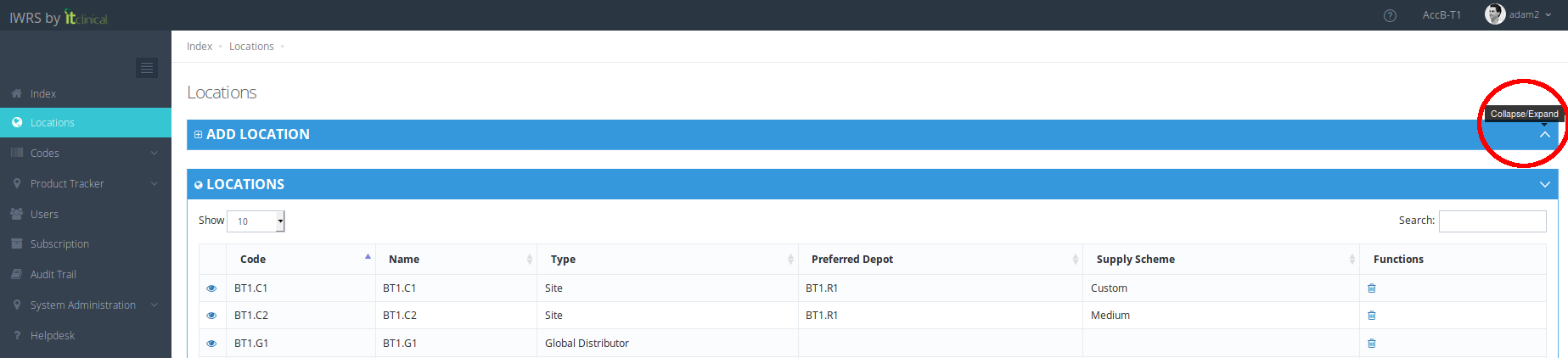
3. Insert Location's details (e.g Code, Name, Type, Country) and click "Add" at the bottom of the form

4. Location will be created and it will be listed in Locations list.

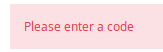
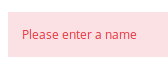
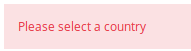
5. In case information is missing when creating a location, a warning will appear.
Examples: Location Code is not inserted
Examples: Location Name is not inserted
Examples: Country is not inserted
Examples: Location Type is not selected
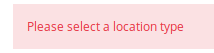
6. Locations with the same name or code cannot exist in the same trial.
Please refer to the following articles to know more about Location Types and Supply schemes:
Please refer to the following articles to know more about editing locations:
2. How to create a location for Trials with EDC connection
For trials with EDC connection please enter the Site code manually in IWRS when creating a new location.
Copying and pasting Site code information to IWRS may lead to incorrect Site Codes being created, as additional whitespaces may be introduced in IWRS - this may lead to inability to randomise subjects!
Therefore, manually inputting information in these fields (instead of copying information from elsewhere) will guarantee whitespaces (or other formatting characters) are not inadvertently added.
Related Articles
How to edit and delete a location
Note: Check also article How to create a location to learn how to create a location. 1. Edit a location 1. Go to the location's details (see step 1. of How to configure a location for the creation of automatic movements). 2. You can edit any location ...How to create Users
Note: User is the entity with the authority to use the application. 1. Create New Users 1. In the Index page, select the Users option to go to the Users page. 2. Select the New User option at the top of the table to open a form. 3. Fill out the form ...Location Types
Location types When creating a location, there are three types which can be chosen from. See information in the table below. Location Level Location Type Description 1 Global Distributor The higher level of location type. Initially contains all kits ...Step 1 - Initiate Product Shipments
1. How to initiate a product shipment 1. Go to Product List page (available under Product Tracker menu or in Welcome Page). 2. Select the products for shipment by ticking their checkboxes in the Create Movement column. 3. When you select a product, a ...Automatically generated Tracking Number
1. Rules for the automatically generated Tracking Number 1.1 Tracking number format The automatically generated Tracking number uses the following properties to create the tracking number (TC-LC-SQN): TC: Trial code LC: Destination location code SQN: ...